Edit a Case
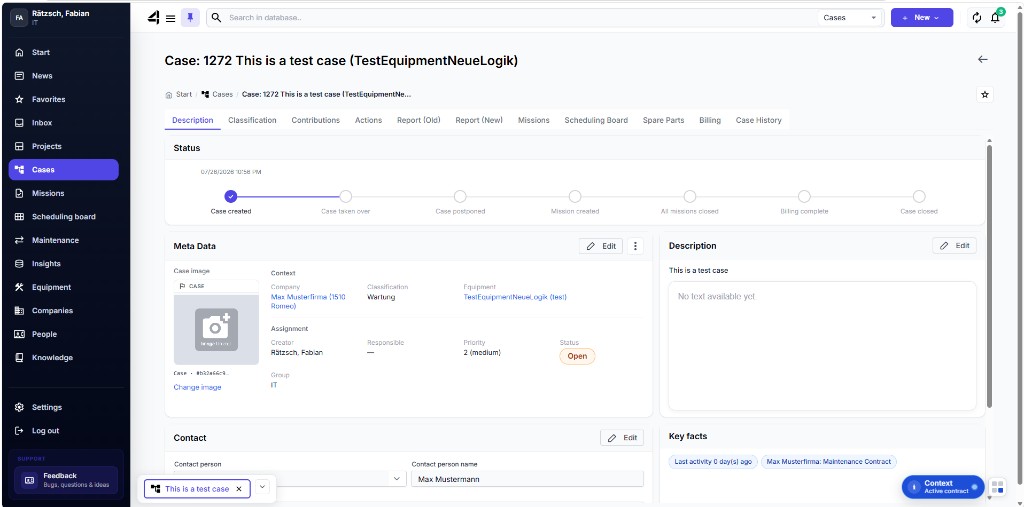
After creating a Case you land in the Case dashboard. That’s where you steer the entire process.
Important tabs
Depending on configuration you’ll see, among others:
- Description – core data for the Case (status, company, equipment, contact person, …)
- Classification – categorization of the Case (relevant e.g. for matching Mission types)
- Contributions – texts, files, and notes in the timeline
- Actions – activities such as take-over, phone call, appointment, note, remote Mission
- Reports – aggregated reports from the Missions
- Missions – open and closed Missions for the Case
- Scheduling board – scheduling Missions in the Case context
- Spare parts – spare part line items on the Case
- Billing – billing type, status, and description
- Case history – history of changes
Take over a Case / set to In progress
If the Case is open, you can take it over or set it to In progress – typically via Actions or the workflow bar in the dashboard.
ℹ️ Info: After take-over you’re usually set as the responsible person and the status switches to In progress.
Release a Case
You can release a Case that’s in progress again. It then goes back to open (without a responsible person).
Close a Case
Close the Case via the corresponding action (e.g. Close Case).
⚠️ Warning: Open Missions must be closed first. If billing details are missing, you may be prompted – you can still continue if you do so deliberately.
Reopen a Case
You can reopen closed Cases. After that the Case is in progress again.