Setup MFA
To set up your Multi-Factor Authentication (MFA), first enter your Domain Id, username, and password into the corresponding fields, then click Confirm.
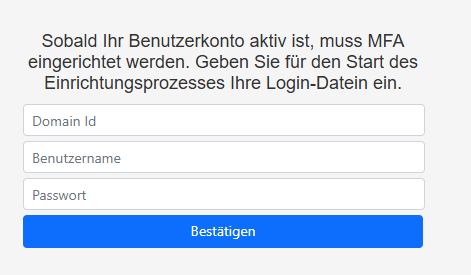
If your entries are correct, the following interface will appear:
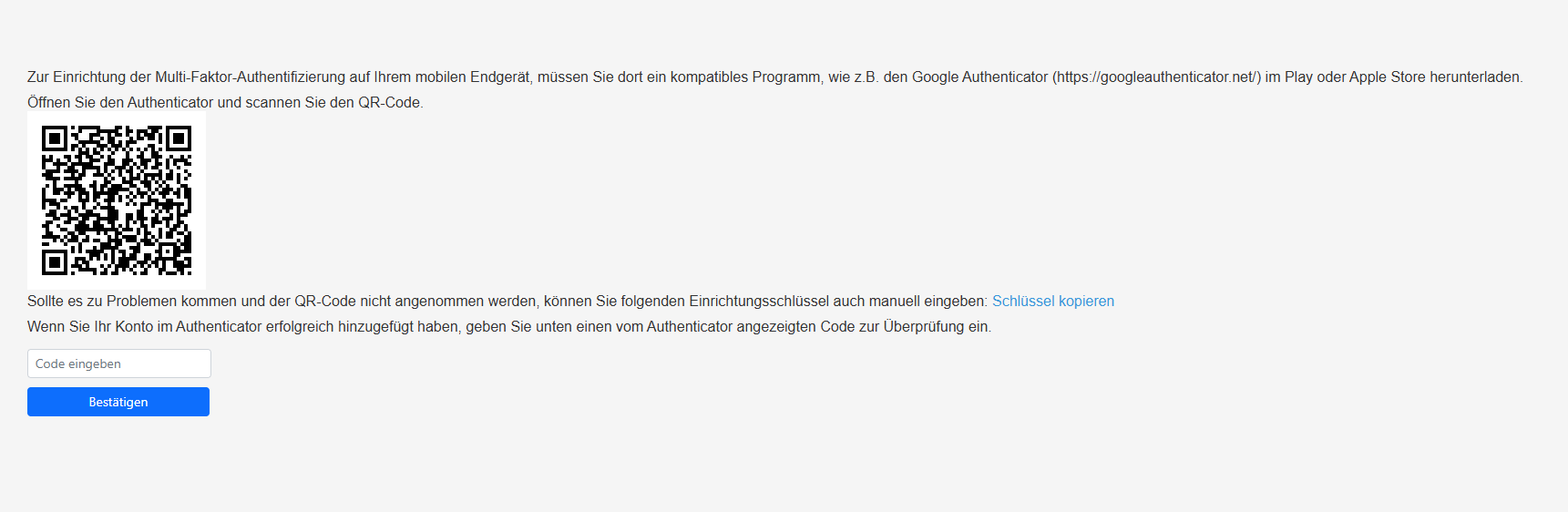
Now open your preferred MFA app, such as Google Authenticator, and scan the displayed QR code. If you're unable to scan a QR code (e.g., because you're setting it up on a desktop PC), you can instead click Copy Key and manually enter the code into your app.
ℹ️ Info: If you haven't installed an authenticator app on your mobile device yet, please download an appropriate application such as Google Authenticator, Microsoft Authenticator, or a similar app from the App Store or Google Play Store.
After successful setup, your user account will appear in the authenticator app along with a six-digit code that automatically refreshes every 30 seconds.
Enter this current code into the designated text field and confirm the setup.
Congratulations – your MFA is now successfully set up! You can now securely log in to 4Service or 4Sales.
ℹ️ Info: Make sure not to use the same MFA code during future logins that you entered during setup. That code has already been used and is therefore invalid.