Reset Passwort / Initial Login
ℹ️ Info: If you have forgotten your password, please follow the same steps as described below. However, at the beginning, click on Reset Password instead of Initial Login.
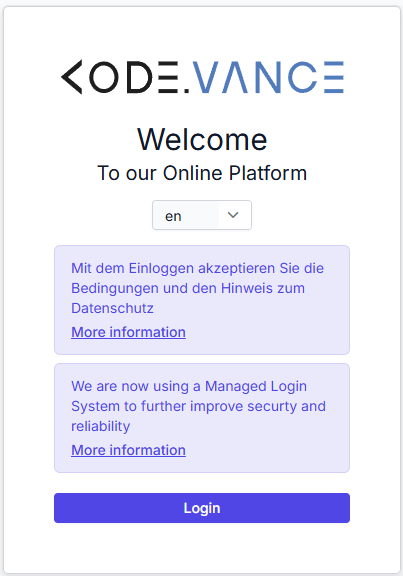
To log in to 4Service or 4Sales, you must first set a new password for your user account. To do this, click on Initial Login.

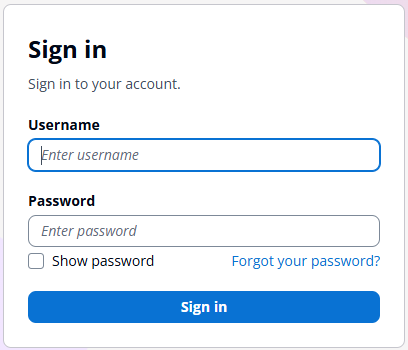
In the next step, enter your Domain Id in the top field and your Username in the bottom field.

Your Domain Id can be found in the welcome email – it is the four-digit number before your name. In the following example, the Domain Id: 1076 and the Username: RBauer.
After submitting, you will receive another email with a six-digit verification code. Copy this code or enter it manually in the upper field. In the lower field, set your desired password.
The password must meet the following requirements:
- at least 8 characters long
- at least one uppercase and one lowercase letter
- at least one special character
Allowed special characters are: !@#$%^&*(),.?":{}|><+-.
ℹ️ Info: Special characters such as Ä/Ö/Ü/ß/_ are not allowed!
ℹ️ Info: If your password is not accepted despite meeting all requirements, it may be classified as insecure and blocked in the database. In this case, please choose a different password.

As soon as you have correctly entered the verification code and set a valid password, the next step is to set up Multi-Factor Authentication (MFA). You can click on Set up MFA immediately after saving your password or alternatively navigate to Home at the top left and then select Set up MFA.